
Making and using a “Team”.
We still haven’t built up the full picture of Teams yet! We’ve seen chat, meeting scheduling, and video calling… let’s try and wrap it all together.
“Teams” is so called because Microsoft wants to help teams to work together. Historically, any project or working group would entail:
Meetings;
Calls;
Lots of discussion, ideas, notes and comments;
Files / documents / contracts / plans.
In many instances what we end up with is a number of email trails with documents attached. Sometimes people getting left out of the loop, different people making different versions of a document.
Teams tries to pull this all together with:
Video meetings to allow distributed groups to meet easily;
A persistent chat area to replace email trails (each “Team” can have multiple “channels”, which are areas of specific focus);
Shared cloud storage set aside for this Team, this project;
All Microsoft files (Excel spreadsheets, Word documents, PowerPoint presentations) stored on cloud storage can be edited in real time by multiple people;
All Microsoft files (Excel spreadsheets, Word documents, PowerPoint presentations) are protected by '“Version history” - if mistakes are made, a previous version of that file can quickly be restored to the “live” version.
In the coming slides we’ll look at a Team which uses a basic ‘Project’ template.
First, let’s install the Teams desktop app.
Until now, we’ve been looking at the browser-based version of Teams. Let’s instal the desktop app:
Click button (1) to download Teams, and click (2) when complete to run the saved installer (Mac users click the download icon at the top of the screen).
Welcome screen.
We drop straight into Chat. Note that this is the chat we added earlier, in the browser-based Teams app.
New meeting in the desktop app. Note how similar it is to the browser-based version. Both work very well.
Now we’ve moved to “Teams” on the left-hand panel. Let’s “Create a team” for a project we’re about to start.
You can pick a Team without any pre-assigned content, or choose from a number of templates. We’ll click “Manage a project”.
This team will be created with four “channels”. Using channels is a way of keeping discussion and documents organised. In a project, you could have channels for planning, delivery/rollout, risk and issue management, etc.
Choose Public or Private depending on what the Team is going to be used for.
Give the Team a name and a description, and click Create.
The Team is created….
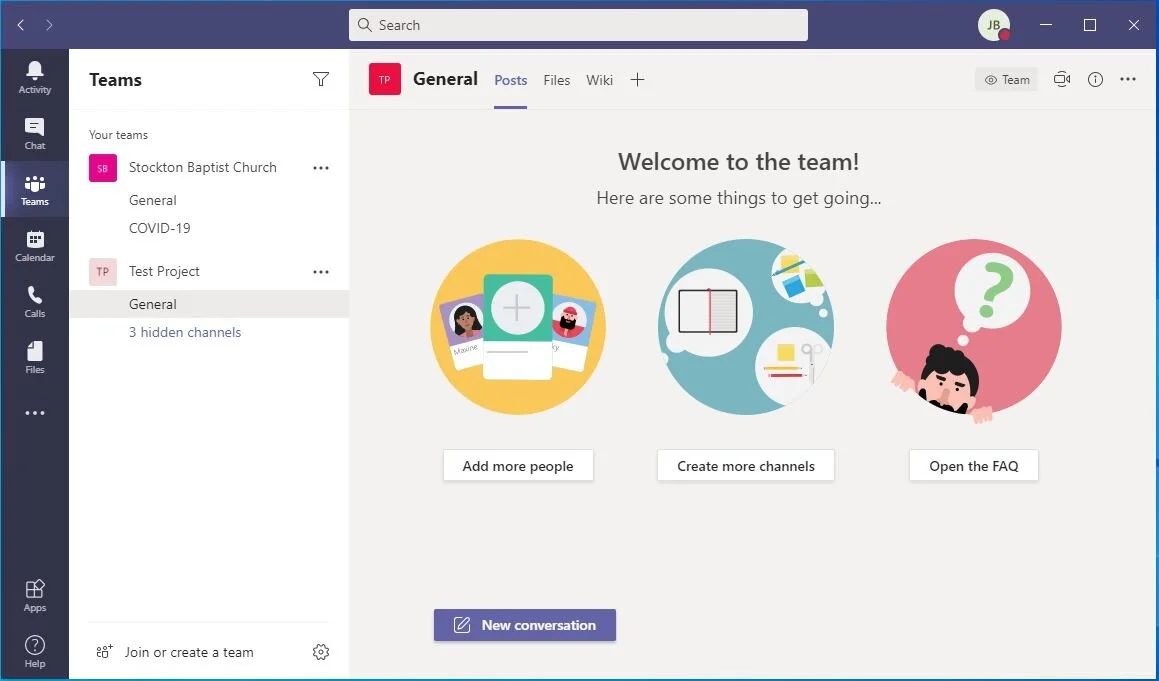
Now you can add people to the Team, and look at your channels / add more. Note that 3 channels are hidden…
If you expand the list of hidden teams, you can choose to “Show” the hidden teams.
You can also add files to the Team, so colleagues can access them easily. You can also edit the files directly within Teams.
Note - files stored in this area are still held within SBC SharePoint, but within a different “site” to Church Docs.
That completes our overview of Teams. Don’t be afraid to create test Teams and meetings, and practice with colleagues!