
Microsoft Teams - overview
How to describe Microsoft Teams?
In business, staff historically used the Microsoft Outlook calendar to schedule meetings. Good old face-to-face, people in a room meetings. “Video conferencing" was something done by large companies in specially kitted-out rooms.
More recently, with the proliferation of ‘connected’ devices and technology, video calling has become much more common.
Microsoft Teams brings video calling technology, and integrates with the users’ Outlook calendar.
Microsoft Teams also brings group collaboration capability, rather like a WhatsApp group: a workgroup who can utilise multiple ‘channels’ of persistent chat text, and adding files, schedulers, planning tools and more. We’ll explore the “collaboration features” in the next page.
Calendars and meetings
Let’s start with calendars and ‘Teams meetings’.
The important thing to remember is - you have one calendar in Microsoft 365, which you access via both Outlook and Teams. You can make meetings in your calendar through both Outlook and Teams.
If you create a meeting in Teams, it will be created as a Teams meeting (with video calling).
If you create a meeting in Outlook, it will begin as a ‘standard’ meeting, without video calling. You can switch the meeting type to "‘Teams meeting” during the meetings’ creation, and video will be added.
Let’s start by opening Teams.
From your Office dashboard, click on the Teams icon at the bottom of the left-hand panel.
When Teams opens, click “Calendar” on the left. You’ll be prompted about desktop notifications - turn them on if you’d like to be notified or reminded about Teams events or when someone ‘mentions’ you.
At the top of this screen are two buttons - “Meet now” (video call someone now) or “New meeting” (schedule a meeting). You would only use “Meet now” if you want to quickly jump on a video call with someone you know is online. Most of the time you will schedule meetings in dadvance. Let’s look at both options.
Meet now:
Click “Allow” to use camera and microphone. You can also download the desktop app from this screen, but we’ll stay within the web browser for now - you can download the app later.
Next, Joe is able to review his camera and microphone settings (both in the “on” position”, and can click “Join now” to start a video call.
Once in the call, Joe will be prompted to add people. This is done by searching the directory for their name. When you select the person you want to call, Teams calls that person, pulling them into the video call.
Scheduling a meeting (“New meeting”):
When you click “New meeting”, you can give the meeting a name, select the date/time and participants (you can invite people outside the SBC organisation - they will enter the Waiting Room on connection), and add any details for participants to read. Click “Send” to create the meeting and send it to participants.
This is how the meeting looks in Joe’s calendar.
When Joe selects the meeting, he has the option to “Join” the meeting or to edit its contents. There is also a “chat with participants” button… here we begin to see the linked-up features of Teams:
This is after clicking “chat with participants”. See the name is the meeting name, and the people included in the chat are the participants of the meeting just organised.
An example of text chat. It works just like WhatsApp. Note the links at the bottom to attch files etc.
So - we’ve got a meeting booked…
Let’s look at the meeting in the calendar, through both Outlook and Teams.
First, through the calendar in Outlook. This is how a meeting will look to one of your recipients:
Not the “Microsoft Teams meeting” text at the bottom. This shows you that the meeting includes Teams video calling.
While still in Outlook, let’s schedule a meeting, so we can see the difference.
As mentioned earlier, when you schedule a meeting in Outlook it is by default without Teams video calling:
But if you click the “Teams meeting” button when creating the meeting, you will add video calling.
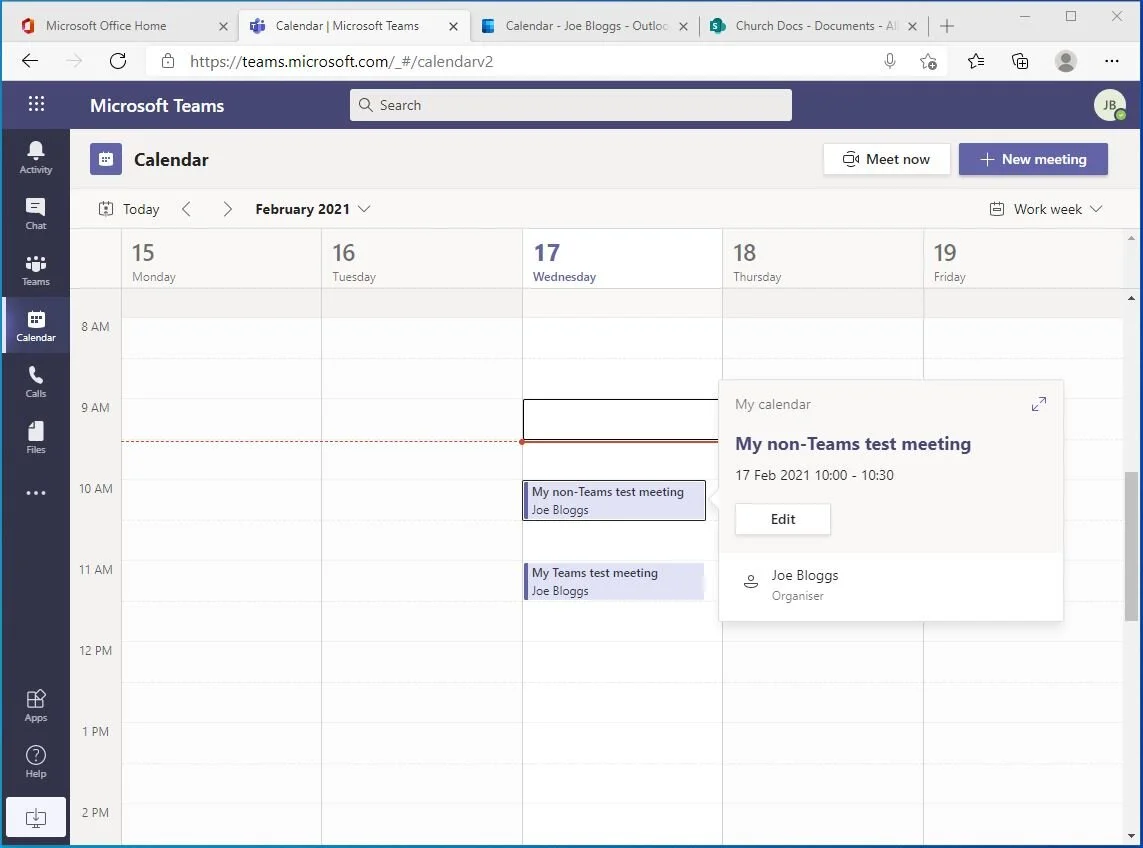
The above meeting is scheduled without Teams - note there is no “Join” button..
… whereas this meeting is a Teams meeting. Note the Join and Chat options.
The non-Teams meeting viewed through Outlook… (note: if you wanted to make this a Teams meeting, you could choose “Edit” and click the “Teams meeting” button as shown above, to turn on Teams functionality)
… and a Teams-enabled meeting viewed through Outlook.
So, as you can see, you don’t have an Outlook calendar and a Teams calendar. You have a Microsoft calendar, accessible through both applications.