
Type “office.com” into the URL bar on your web browser. Click “Sign in” to start the login process.
Enter the email address you have been given - this is your sign-in name.
Enter the password you have been given. You will be asked to set your own password later.
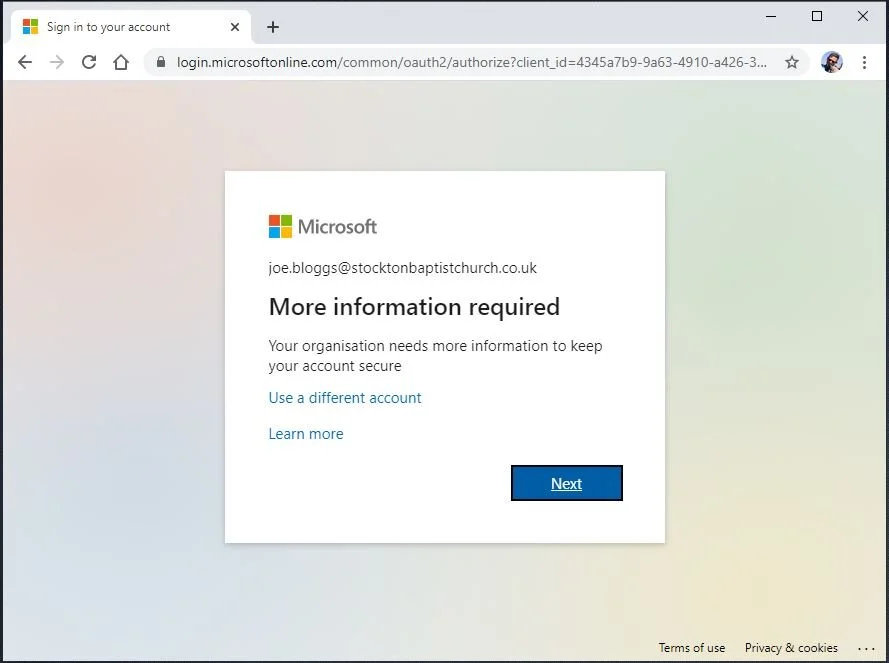
You will now be asked to add a mobile number as a second ‘factor’ of authentication…
Choose United Kingdom from the list of country codes, and add your full mobile number. Click Next to continue…
You will receive a text message from Microsoft, with a 6-digit number. Enter the code and click “Veriy” to confirm that you are in posession of that mobile phone.
You may be prompted to create an “app password”. If prompted, create a different password, and keep this password safe.
You now must update your password. Enter the password assigned to you, and then enter & re-enter a new password. You will then be granted access to Microsoft 365.
You will (now or the next time you log in) whether you want to stay signed in. My recommendation - say “No” to this. You can let your browser save your username and password, but if you say “No” to staying signed in, then every time you log in, you will receive an SMS from Microsoft to use as validation for the login process. This ensures that you KNOW when your account is being accessed.
When you first access Microsoft 365, you are presented with a short series of slides to help orient you.
The dashboard. The icons down the left-hand side are shortcuts to online versions of the Microsoft applications you have access to.
Note that the “Home” icon at the top is highlighted - this shows that you are at the home screen.